You've probably watched a YouTuber playing Minecraft with giant mechs, realistic weather, or 200 new Biomes and thought, "Wait, that's not the game I downloaded." It isn't. That's modded Minecraft, and it's a completely different world from the vanilla experience.
Mods have been part of Minecraft's DNA for over a decade. Some of the most popular games and features you see today, horses, dogs, and hunger mechanics, actually started as mods before Mojang officially added them. The community has always been ahead of the game. Literally.
This guide covers everything a beginner needs to know: what Minecraft mods actually are, how to install them without breaking your game, which ones are worth trying first, and how to keep your computer safe in the process.
What Are Minecraft Mods?
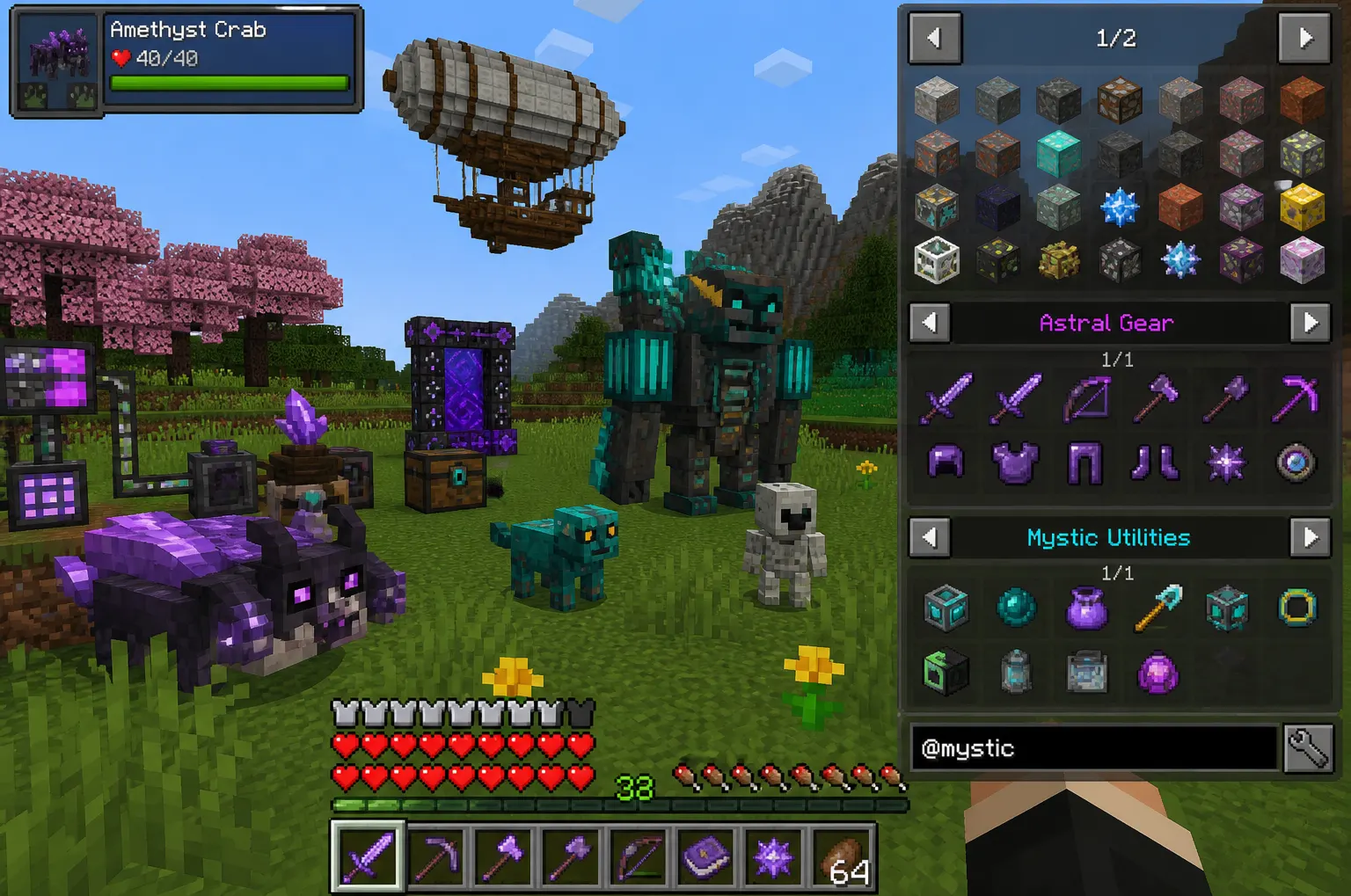
A Minecraft mod is a user-created modification to the game's code that adds, changes, or removes content. That could mean new blocks, new mobs, entire dimensions, revamped combat systems, or quality-of-life tweaks like better inventory management.
Mods are written by independent developers, not Mojang, and shared freely through community platforms. Some are solo projects maintained by one person on weekends. Others have teams, changelogs, Discord servers, and millions of downloads.
Quick definition for featured snippet: Minecraft mods are fan-made files that modify the game to add new content, features, or mechanics. They're installed alongside the base game using a mod loader like Forge or Fabric and work primarily on the Java Edition of Minecraft.
Java Edition vs Bedrock Edition: Which Supports Mods?
This trips up a lot of newcomers. The answer matters because the two versions work completely differently under the hood.
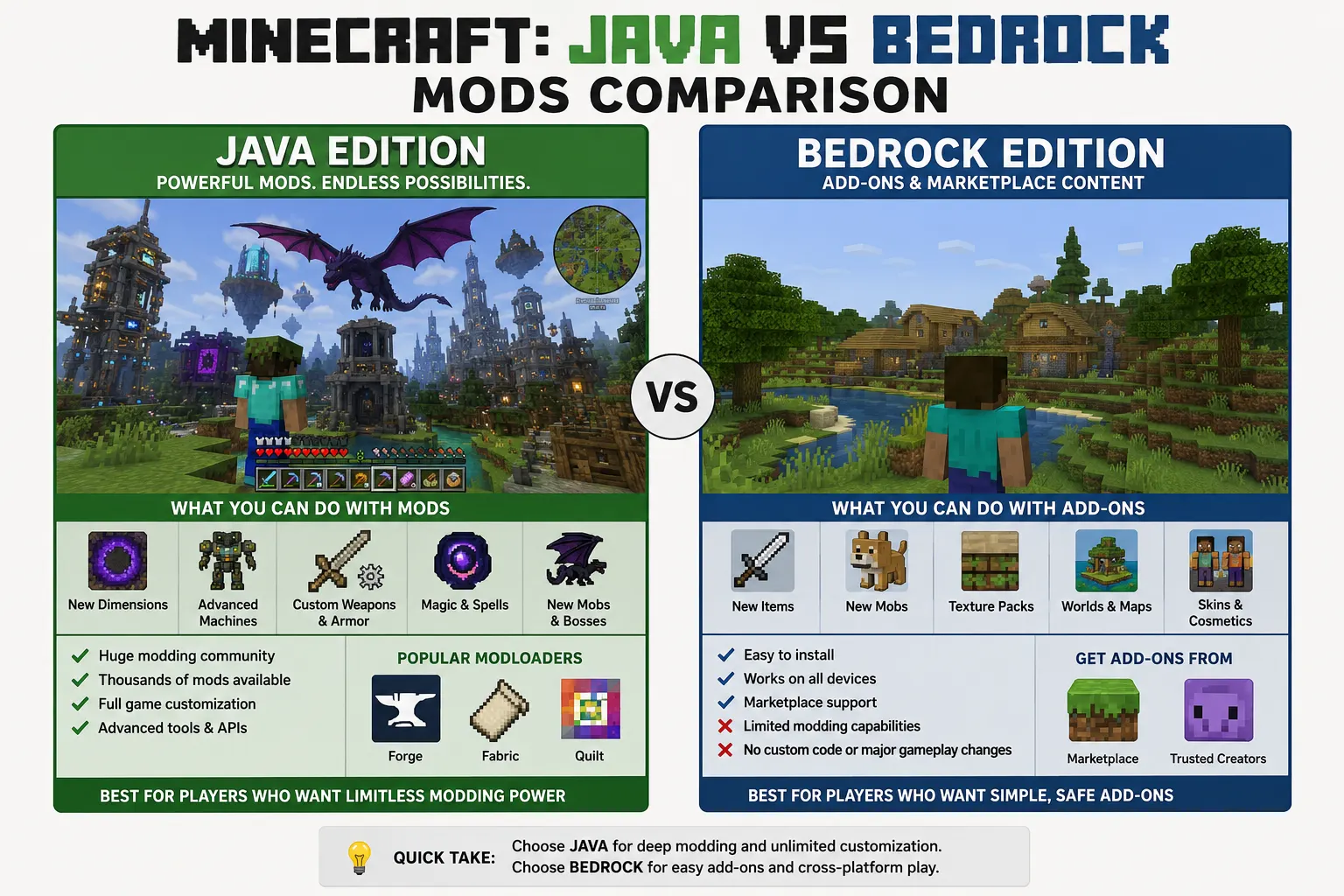
Java Edition (PC only) is the original version. It has full mod support through community tools. If you've seen YouTube videos with massive mod packs and wildly different gameplay, those are almost always Java mods.
Bedrock Edition (consoles, mobile, Windows 10/11) has limited modding. It supports "add-ons," which are simpler, more restricted modifications through the official Minecraft Marketplace or external tools. You won't find the same depth of mods on Bedrock.
So do Minecraft mods work on Java and Bedrock? Real mods, the kind with full features, are Java-only. Bedrock add-ons are a different system and won't run Java mod files. If you're serious about modding, Java Edition is the version to get.
How Do Minecraft Mods Work?
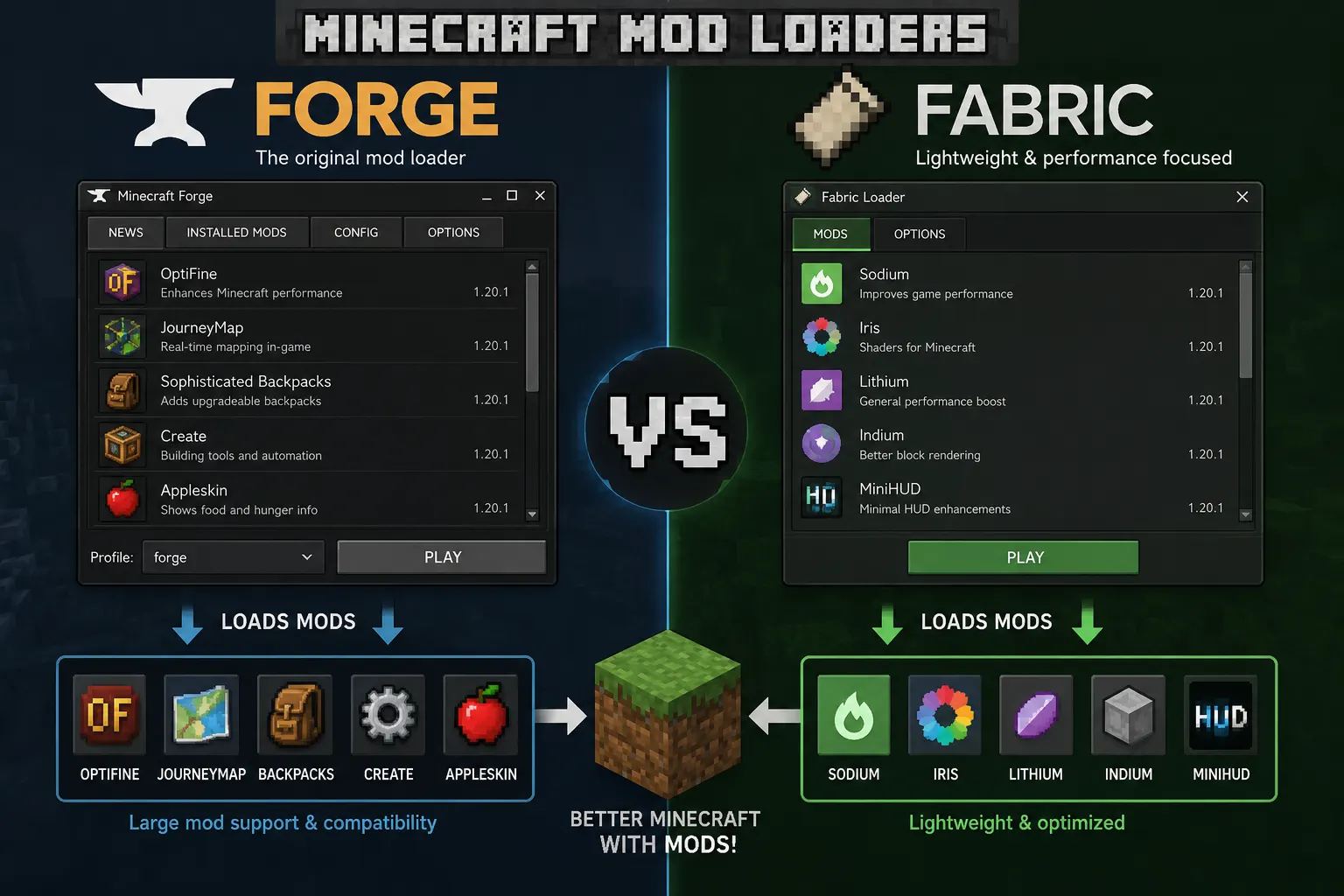
Mods are .jar files (Java archive files) that you drop into a specific folder on your computer. They don't replace the game; they run alongside it, loaded by a mod loader that sits between the game and the mod files.
Without a mod loader, mods can't function. The two you'll encounter most often:
Minecraft Forge is the older and more established option. Most major mods, especially the older, larger ones, are built for Forge. It has a massive library and is the default choice for mod packs.
Fabric is newer, lighter, and faster to update when Minecraft releases a new version. It's preferred by a growing number of mod developers because of how quick it is to work with. Many popular performance mods and newer projects choose Fabric.
You generally can't mix Forge mods and Fabric mods in the same game instance. Pick one and stick to it. Most beginners start with Forge because of sheer variety.
How to Install Minecraft Mods Step by Step
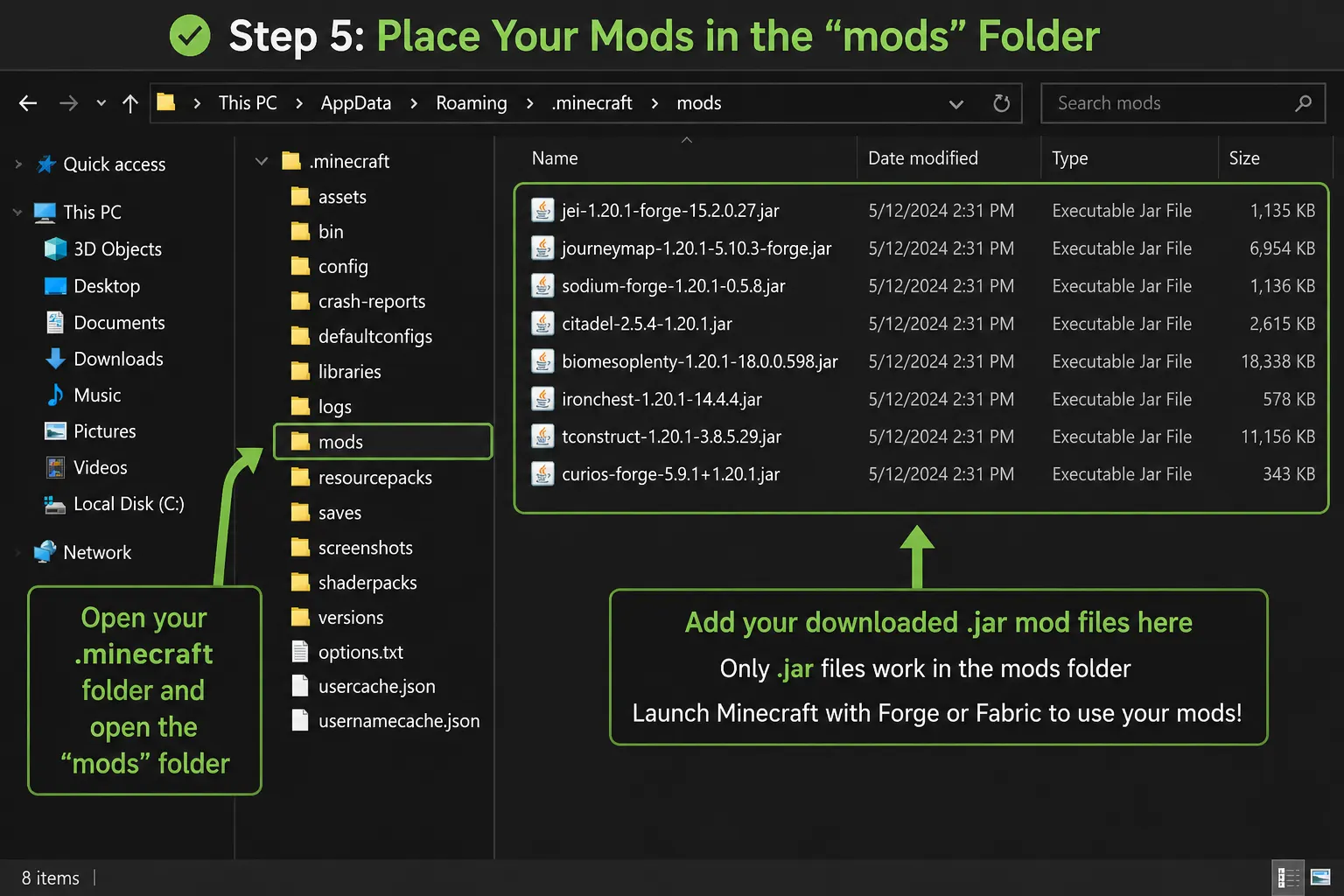
Here's the straightforward process for Java Edition. It takes about 10–15 minutes the first time.
Step 1: Install the Right Version of Minecraft
Mods are version-specific. A mod built for 1.20.1 probably won't run on 1.21. Before downloading anything, decide which Minecraft version you want to play and stick to it.
Open the Minecraft Launcher, go to Installations, and create a new installation for your target version.
Step 2: Download and Install a Mod Loader
Go to the official Forge website (files.minecraftforge.net) or the Fabric website (fabricmc.net) and download the installer for your chosen Minecraft version.
Run the installer. It will add a new profile to your Minecraft Launcher automatically. This is where your mods will run.
Step 3: Download Your Mods
Only download from trusted sources. The two you should know:
-
CurseForge (curseforge.com) the largest mod repository, used by most major developers
-
Modrinth (modrinth.com) is newer, cleaner, and increasingly popular, especially for Fabric mods
Search for the mod you want, make sure the version matches your game version, and download the .jar file.
Step 4: Place the Mod File in the Mods Folder
On Windows, press Win + R and type %appdata%\.minecraft. Open the mods folder. If it doesn't exist, create one.
Drop your downloaded .jar files in there. That's it for this step.
Step 5: Launch Using the Mod Loader Profile
Open the Minecraft Launcher, select the Forge (or Fabric) installation from the dropdown, and hit Play. Your mods will load automatically. If something crashes on startup, one of your mods is likely incompatible with another or running on the wrong version.
Is Modding Minecraft Safe?
The honest answer: it depends entirely on where you download from.
Minecraft mods themselves, the code that changes the game, are not inherently dangerous. The risk is in downloading from shady, unofficial sources where bad actors have bundled malware into fake mod files.
Is Modding Safe for Kids?
Yes, if downloads are handled carefully. The safest approach for younger players is sticking to CurseForge and Modrinth only, having a parent or older sibling verify the download page before clicking anything, and avoiding random Discord file shares or third-party download sites that show up in Google search results.
How to Download Minecraft Mods Safely
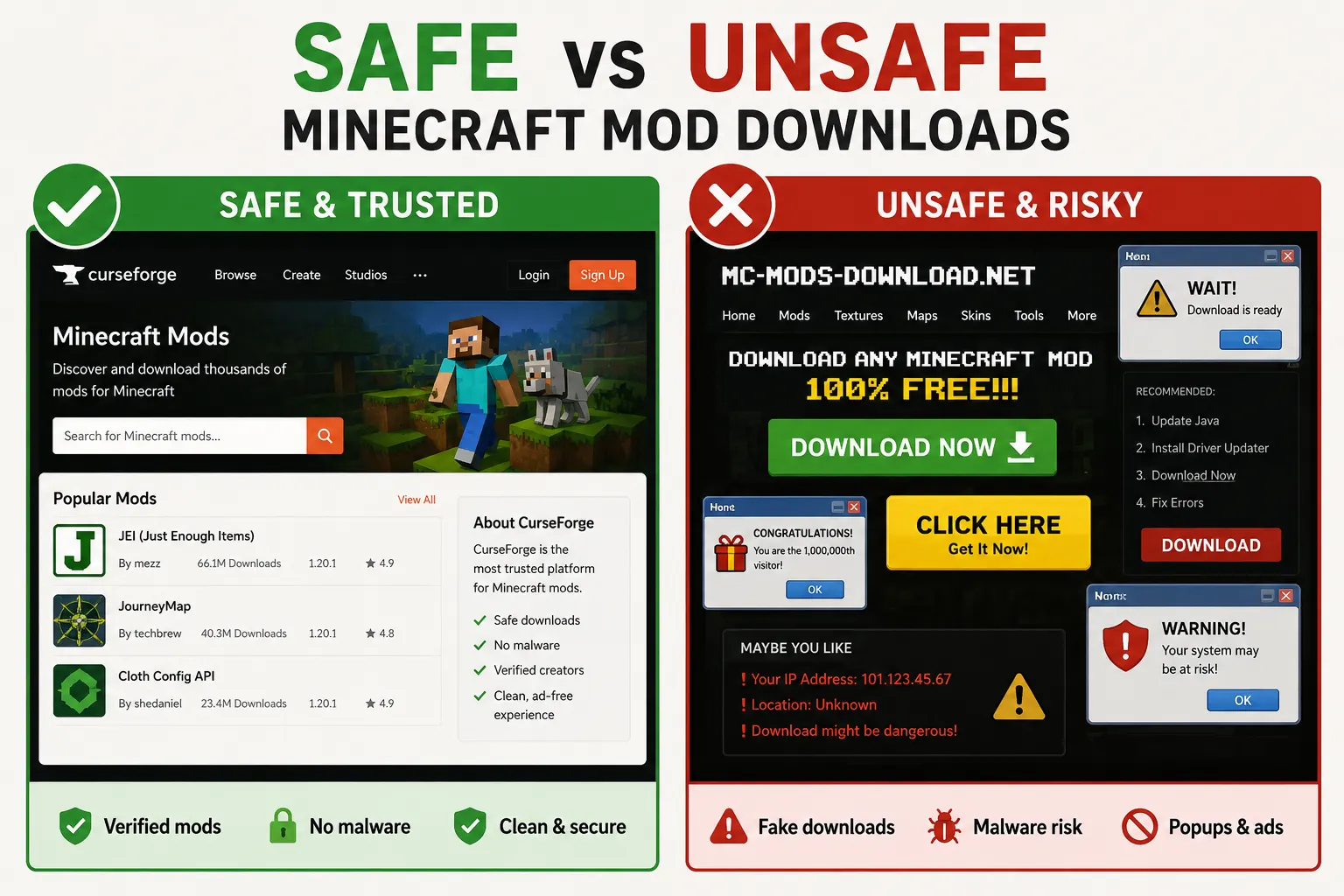
-
Stick to CurseForge and Modrinth. Bookmark them. Don't use anything else.
-
Check the download count and review section. A mod with 2 million downloads and active comments from last month is much safer than one with 47 downloads and no page activity.
-
Never download .exe files. Mods are .jar files. If someone tells you to run an installer to get a mod, close the page.
-
Run a virus scan on downloaded files if you want extra peace of mind. Windows Defender is fine for this.
-
Never give mods administrator privileges or bypass SmartScreen warnings if Windows is flagging it; take that seriously.
The safest Minecraft mods are the ones with long track records, active developer communities, and thousands of verified user installs on the official platforms.
Best Minecraft Mods for Beginners (2026)
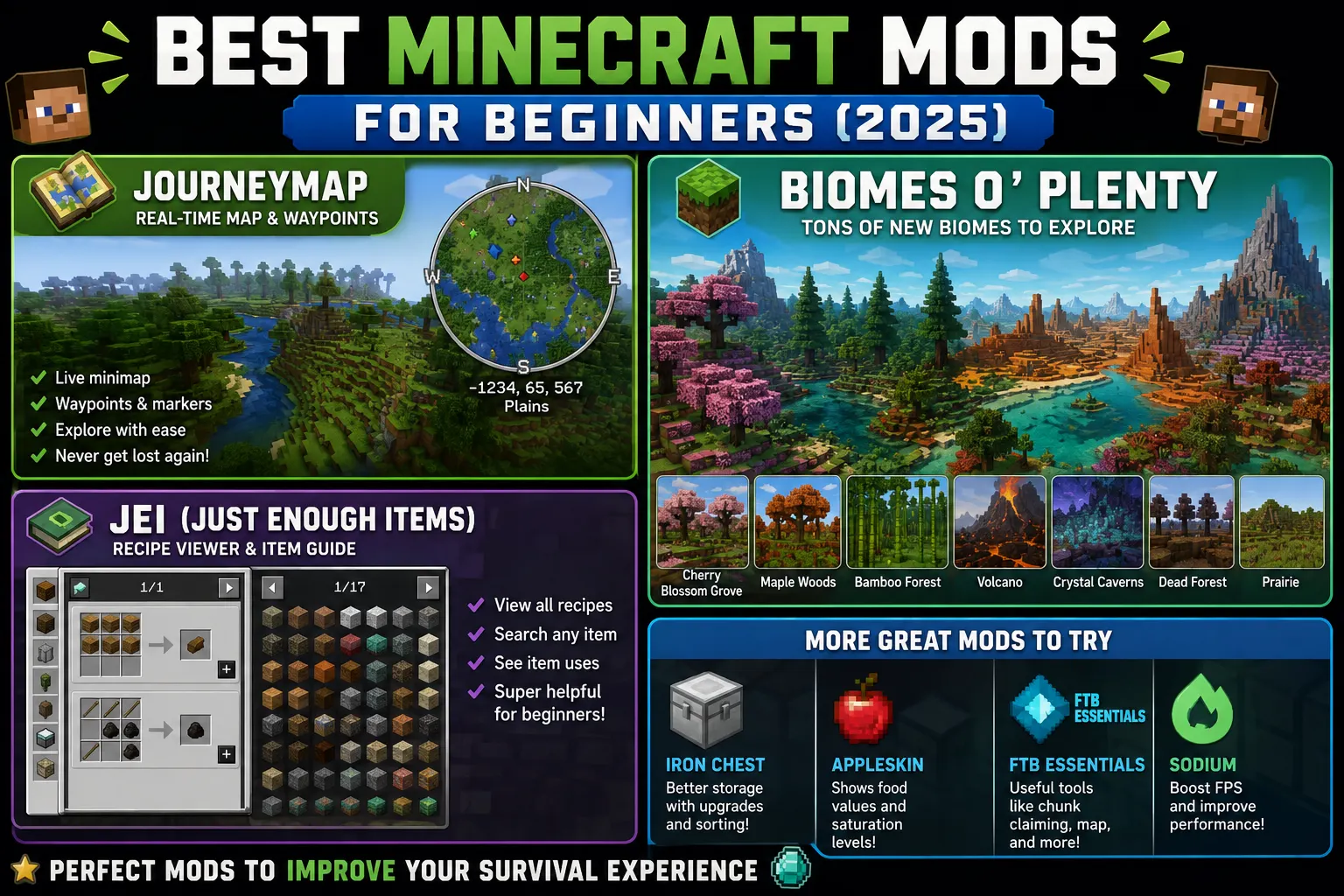
You don't need a 300-mod pack on your first run. These are accessible, well-maintained, and genuinely fun:
OptiFine / Sodium Performance mods that make the game run smoother and add quality settings. OptiFine works with Forge; Sodium is the Fabric equivalent. Start here if your game is laggy.
Waystones adds teleportation stones you can place around your world. Incredible for Survival mode once your base gets far from your mining operations.
Quark: massive collection of small tweaks and additions that feel like they could've been in vanilla. Things like item sorting, new stone types, and better mob behaviors. It doesn't change the game dramatically; it just makes it feel more complete.
Biomes O' Plenty: New biomes with unique trees, plants, and terrain. Great for exploration players who've seen everything vanilla has to offer.
JEI (Just Enough Items) shows you every Crafting recipe in the game. Essential for mod packs where you're dealing with hundreds of new items.
Iron Chests: Different tiers of chests with more storage. Simple, stable, incredibly useful once your inventory gets out of control.
None of these is overwhelming. They don't rewrite the game from scratch, and they're all available on CurseForge with thousands of positive installs.
Mistakes Beginners Make When Modding
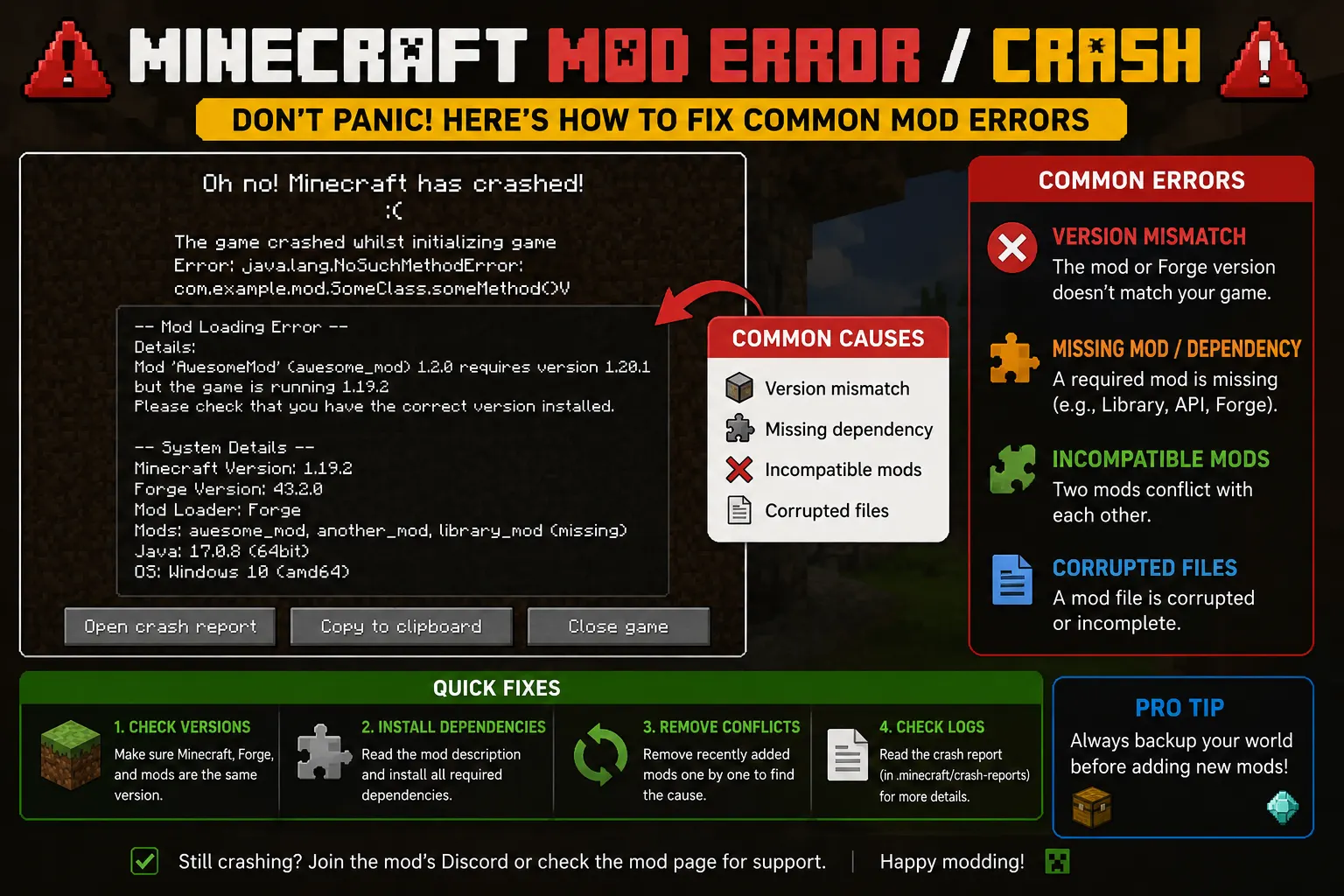
Most mod problems are self-inflicted. Here's what goes wrong:
Mismatching versions. A mod built for 1.19.4 will crash a 1.20.1 Forge install every single time. Always check the version before downloading. Always.
Downloading from Google search results. The first result for "download [mod name]" is often not the actual mod page. It's a third-party aggregator site that may have modified files. Go directly to CurseForge or Modrinth.
Installing 40 mods at once. When something breaks, and something will break, you'll have no idea which mod caused it. Add mods one or two at a time, especially when you're starting.
Ignoring dependency requirements. Some mods need other mods to run. JEI is a dependency for several recipe mods. If you install a mod that requires another library mod and don't include it, you'll get an error on launch. Read the mod page.
Not backing up saves. Before adding mods to an existing world, back it up. Some mods change world generation in ways that make old chunks behave strangely next to new ones.
GAMQO Tip:
Most beginners think a mod is “broken” when the game crashes, but in my experience, it’s almost always a version mismatch or a missing dependency. Before deleting anything, double-check the Minecraft version, mod loader (Forge vs Fabric), and required library mods. This one habit alone will save you hours of frustration.
Wrapping Up
Modding Minecraft changes the game more than most people realize until they actually try it. The learning curve on first install is real version mismatches and load errors are part of the experience. But once it clicks, vanilla Minecraft starts to feel like a demo version.
Stick to CurseForge and Modrinth. Match your versions. Start small. The rest you'll figure out as you go, and there's a genuinely helpful community around most major mods when you need it.